 By Ultima Music
Support & getting started
From your first note
to your first harmony.
Learn how to open Guitar Harmony Helper, enter a riff, find a scale, and hear the parts together.
No installation needed
Run the browser demo
- Open Try Now in a current desktop browser. A laptop or desktop with a keyboard gives you more room to edit.
- Let the editor and sounds finish loading. The first visit can take a little longer while the instrument bank downloads.
- Click “Start my riff”. The guide explains what to do next. If you hide it, use Show guide to restart the walkthrough.
- Enable audio. Click Enable sound at the top of the page, then use the playback buttons in the editor.
The free demo includes one 4/4 bar and one harmony, with no time limit. It starts with an empty bar. Project opening and saving are desktop features; refreshing or leaving the demo loses your browser riff.
A quick walkthrough
Make your first harmony
1. Enter a short riff
Choose a note length above the tab, click a string, and type a fret number. The top line is the high E string in standard tuning. Use → to move to the next position and ↑ / ↓ to change strings. Type both digits promptly for a fret such as 10.
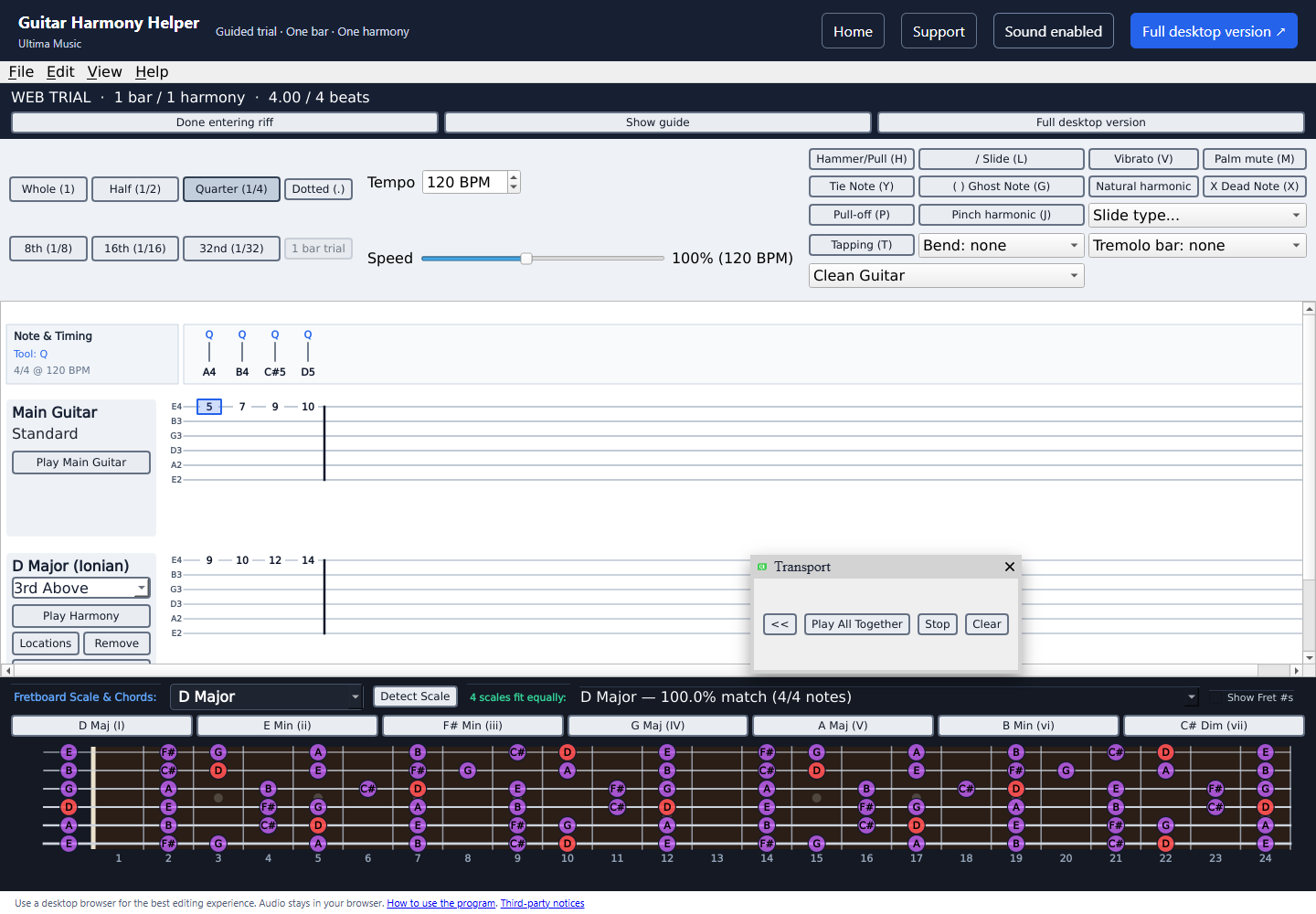
Select Quarter (1/4). On the top string, enter the frets below, pressing the right arrow between notes:
5 → 7 → 9 → 10Four quarter notes fill the bar. The usage display should read 4.00 / 4 beats.
Choose Done entering riff when you are ready. You can finish before the bar is full; a full bar also advances the guide after a short pause.
2. Find a scale
Click Detect Scale below the tab. Review the matching scales and choose one from the scale selector. Several scales may fit the same short riff; the percentage describes note matches, not certainty about the key. The example above fits D major.
3. Add the harmony
Click + Add Harmony beside Main Guitar. Check the key and scale in the dialog, choose an interval such as 3rd Above, and click OK. The trial allows one harmony part.
4. Listen and adjust
Floating transport: the <<, Play All Together, Stop and Clear controls are in a movable Transport panel. Drag its title bar to reposition it. If you close it, choose View → Transport to show it again. Tempo and Speed stay above the tab; bend and tremolo-bar controls sit above the MIDI instrument selector.
Play Main Guitar and Play Harmony let you hear the parts separately. Play All Together combines them. Click Stop or << to stop and return to the beginning. Change the instrument dropdown to try another SoundFont sound.
5. Find a comfortable fingering
Click Locations beside the harmony and choose a fret region or string. You can also click an individual harmony note to see alternate positions. The guide ends with the desktop offer; Keep experimenting closes the offer so you can continue using the demo.
Keep these close
Controls & shortcuts
Click inside the tab before using editing shortcuts. If a menu or input has focus, click the tab again.
| What you want to do | Control |
|---|---|
| Enter a fret | Click a string, then type the fret number |
| Move between note positions | ← / → |
| Move between strings | ↑ / ↓ |
| Delete a selected note | Delete or Backspace |
| Choose duration | Whole, Half, Quarter, 8th, 16th or 32nd buttons |
| Add a dotted duration | Dotted button or . |
| Toggle playback | Space while the tab has focus |
| Undo / redo | Edit menu |
| Add an articulation | Select a note, then use the labeled technique buttons |
| Adjust tempo or practice speed | Tempo (BPM) field or Speed slider |
| Start the browser demo again | Clear resets the riff and guide |
In the trial, note lengths, dotted notes, rests and gaps all count toward the one-bar limit. If an edit would exceed the bar, shorten a note or edit an existing position.
Windows application
Run the desktop program
Guitar Harmony Helper for Windows is available for $25 USD, a one-time purchase. One person may use it on up to two computers, with permanent version 1 use and free version 1 updates. Future major versions may be sold separately.
- Download your installer and license. After payment, save the Windows setup file and your separate
.ghhlicensefile from the confirmation page. Your license email also includes the license attachment and installer link. - Run the Windows installer. Open
Guitar-Harmony-Helper-1.0.3-Windows-x64-Setup.exeand follow the setup steps. The installer is digitally signed by Stephen Chrzan. If Windows asks about an unrecognized app, see Windows installation help below. - Activate the app. Open Guitar Harmony Helper, choose Import license, select the downloaded
.ghhlicensefile, then choose Start using Guitar Harmony Helper. The installer alone does not activate the app. A sandbox test license cannot activate the production app. - Create your project. Use File → New Project (Tuning / Time Sig) to choose tuning and time signature. Enter notes, detect a scale, and add harmony parts using the same basic workflow as the demo.
- Save your work. Use File → Save .ghh to save a Guitar Harmony Helper project. Use File → Open .ghh to return to it later. Keep a backup of important projects.
Windows installation help: an unrecognized app message
Windows SmartScreen may ask you to confirm this new app. Select More info and check that the publisher is Stephen Chrzan. Proceed only if you downloaded the installer from guitarharmonyhelper.com and trust the file. Contact us if you are unsure.
If Windows reports a malware detection, an invalid signature, or a different publisher, stop and contact support with the exact message. Keep Windows security protections enabled.
The browser demo uses SoundFont playback. The Windows desktop application has its own guitar playback engine and supports longer projects, multiple harmony parts, and project files.
Common questions
Get back to making music.
The demo is silent
Click Enable sound, then Play All Together. Check your computer volume, browser tab mute setting, and selected output device. Click inside the demo once to allow browser audio. If needed, refresh, wait for loading to finish, and try again; refreshing clears the riff.
The demo stays on the loading screen
Wait for the editor and instrument sounds to download. Check your connection and try a current desktop browser. If you have a blocker that prevents site scripts or downloads, review its settings for this site. If loading still fails, contact support with the browser name, version, and the message shown.
Typing does not enter notes, or Space scrolls the page
Click a string in the tab editor before typing. Close any open menu or dialog first. The editor must have keyboard focus for its shortcuts to work.
I cannot add another bar or harmony
The browser trial allows one 4/4 bar and one harmony. Edit the existing riff, shorten a note, remove the harmony to try another, or use Clear to start again. Longer projects and multiple harmonies are desktop features.
Why do several scales match?
A short set of notes can belong to several scales. Choose one and listen to the resulting harmony. A 100% match means all entered notes fit that scale; it does not prove that scale is the only possible key.
The harmony is too high or awkward to play
Use Locations beside the harmony to select a different neck region or string. Click a harmony note for individual location alternatives. You can also change the harmony interval.
The desktop application reports a missing DLL or cannot find sounds
Close the application and run the official Windows installer again to reinstall the bundled libraries and sound files. Keep the installed program folder together. Contact support if the problem continues; include the exact error message. Do not download individual replacement DLLs from unrelated websites.
Still need a hand?
Contact Ultima Music
Email customerservice@guitarharmonyhelper.com.
Tell us whether you are using the browser demo or Windows program, what you were doing, and the exact error message. Include your browser or Windows version and a screenshot if it helps. Do not send passwords or payment card details.
Contact email coming soon.